Artrace: AR Easy Draw & Sketch
Braly JSCArt & Design
4.63.69K Reviews
- Version
- 2.0.5
- Installs
- 50.00M
- Age Rating
- Everyone
Screenshots
Our Review of Artrace: AR Easy Draw & Sketch
 Analysis by Appyee
I tend to judge drawing apps by a practical question: do they help me make a mark on paper, or do they keep me inside a screen? AR Drawing - Sketchar is built around the first approach. It uses a phone camera to place a reference image over a real surface, so I can follow its lines with a pencil instead of drawing entirely on a touchscreen. That makes it a different kind of tool from a conventional digital sketchbook, and the distinction matters when you are deciding whether it fits your habits.
In the Art & Design category, Braly JSC’s app has found a sizable audience: it has over 10 million installs and an average rating of 4.3 from around 129,000 ratings. Those figures suggest plenty of people are interested in guided, camera-assisted drawing, though they do not tell me whether the method will suit every learner. My own test for an app like this is simpler: can I set up a useful reference, keep my hand comfortable, and still feel that I am making the drawing rather than just copying a screen?
Choose it for paper, not for a digital canvas
The main decision is whether you want to draw physically or digitally. A standard drawing app gives you a canvas on your device, along with a direct way to undo, adjust, and work in layers. Sketchar’s AR approach instead aims to help you transfer an image onto a surface. If you enjoy the feel of a pencil and want guidance with proportions, that can be more appealing than learning a touchscreen interface.
It is especially useful if you are a beginner who knows what you want to draw but struggles to judge where the lines should go. A projected guide can give you a starting point for a greeting card, a notebook illustration, a simple poster, or a practice sketch. I would treat the overlay as scaffolding: it can help you begin, but it cannot decide which details to emphasize or make the finished drawing expressive for you.
That distinction is also useful for experienced artists. Someone who already understands form and shading may use the app to place a reference quickly, then add their own interpretation by hand. But if your main goal is freehand practice, relying on tracing for every exercise could become a crutch. I would alternate guided transfers with sessions where I draw from observation or memory, so the convenience does not replace the skills I am trying to build.
Features That Inspire Creativity
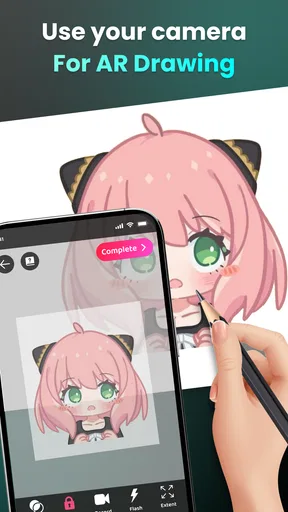
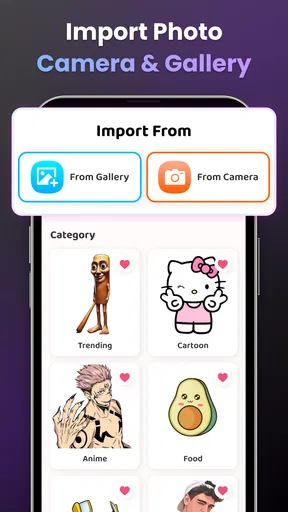
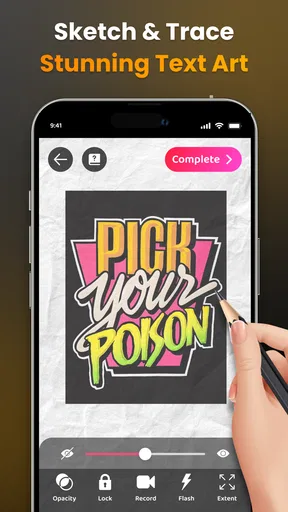
So, what makes AR Drawing - Sketchar stand out? First off, its augmented reality feature is a total game-changer. You can project images onto a surface using your phone's camera. This means you can trace over them and create stunning artwork. Imagine having a personal art tutor right in your pocket!
The practical setup matters more than the novelty. I would choose a stable, well-lit spot, place the paper on a firm surface, and avoid moving the phone once the guide is lined up. A small shift between the reference and the page can make a long outline frustrating to follow. It also helps to begin with a large, simple image rather than a crowded one: dense details are harder to trace accurately and can make a first attempt feel more complicated than it needs to be.
Think about the surface before starting, too. A sketchbook or sheet of paper that lies flat is easier to work on than a page that curls or slides. If you are drawing at a table, make sure you can hold the pencil naturally while still seeing the projected guide. This is a genuine trade-off of camera-based drawing: unlike a digital canvas, the result depends partly on your physical arrangement, so a few seconds spent setting up can save repeated adjustments later.
The app also offers a wide range of drawing tools. From pencils and brushes to vibrant colors, everything you need is at your fingertips. The interface is super user-friendly, so even if tech isn't your thing, you'll find it easy to navigate.
Those digital tools and the AR workflow serve different parts of the process. The camera guide helps with placing lines on paper, while digital drawing tools are useful when you want to experiment directly on a device. I would not assume that a selection of brushes turns the app into a complete replacement for specialist illustration software; its clearest identity is the combination of drawing guidance and creative practice. If you want detailed digital editing, a dedicated drawing program may suit you better. If you want to make a physical sketch with a visual reference, the camera-led approach is the reason to try this one.
Learning and Growth
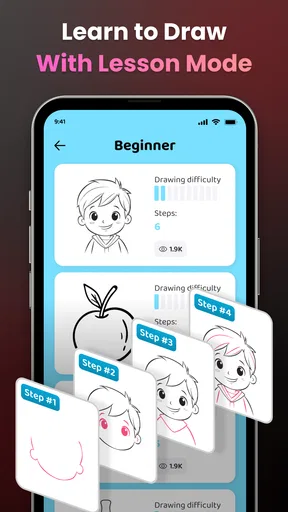
One of the coolest things is the lessons and challenges. These are perfect for those days when you need a little inspiration or want to learn new techniques. The app guides you step by step, helping you improve your skills while having fun. It's like having an art class without the pressure of grades!
I find guided activities most valuable when I give myself a narrow goal instead of expecting a dramatic improvement in one sitting. For example, I might use a lesson to practice drawing a particular shape, then spend a few minutes repeating it without the guide. That second pass tells me whether I understood the process or merely followed instructions. Lessons can provide structure when I feel stuck, but they work best as prompts for practice rather than as proof that I have mastered a technique.
A realistic everyday use is a quiet half-hour at home: I have a blank card to decorate, choose a manageable reference, secure the paper, and use the camera overlay to get the main outline in place. After that, I can put the phone aside and decide how to add color or personal details. This is where the app can make a small creative task feel approachable. It is less suited to a rushed moment on a bus or in a crowded café, where holding the device steady and keeping the page aligned may be awkward.
Before beginning a longer drawing, I would also make a quick test sketch. It reveals whether the chosen image is legible at the scale of the paper and whether the camera view is comfortable from the position where I will draw. This simple check can prevent wasting time on a reference that is too intricate or badly placed. The best outcome is not always the most exact tracing; sometimes simplifying a guide into a few key shapes makes the finished piece look more like your own work.
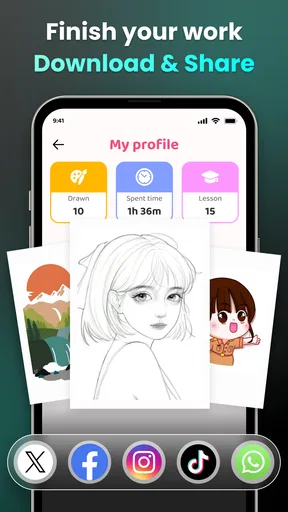
And let's not forget about the community aspect. You can share your creations with other users, get feedback, and even participate in contests. This not only helps you grow as an artist but also connects you with people who share your passion.
Sharing can be motivating, especially if you want a reason to finish a piece instead of leaving it half-done. I would use feedback to ask a specific question, such as whether the outline reads clearly or whether a color choice works, rather than treating reactions as a measure of talent. A community can offer encouragement and ideas, but it is still worth developing your own standards: what you wanted to learn, what improved, and what you would change next time.
When another kind of drawing app fits better
The usual alternatives fall into two broad groups. Digital sketching apps are better if you want to draw directly on a screen and revise your work repeatedly. They avoid the physical alignment involved in an AR overlay, and they make sense for people who already prefer stylus-based or finger-based drawing. On the other hand, a traditional paper-and-pencil lesson or reference image may be enough if you do not need the camera guide and would rather keep your process simple.
Sketchar’s advantage is the bridge between a digital reference and a physical drawing surface. That bridge is useful for learning placement or making a guided first attempt, but it does not automatically make the drawing more accurate or more creative. A person who wants layers, precise digital editing, or a fully screen-based workflow should compare it with dedicated drawing tools. Someone who wants to practice observation without tracing may be better served by drawing from a still-life object or a printed reference instead.
There is also a difference between tracing and learning to draw. Tracing can make an image easier to transfer, but it does not by itself teach perspective, proportion, or how to invent a subject from scratch. I would use the app as one part of a broader routine: trace a simple outline, study how the shapes relate, then try a similar subject without the overlay. That makes the guide a stepping stone rather than the whole lesson.
For younger artists or families, the Everyone age rating makes the app broadly approachable, but I would still decide based on the child’s patience and the drawing setup available. A phone that must stay positioned while a child draws can be harder to manage than a printed picture or a simple paper activity. For an adult beginner who wants a visual starting point, that same guided process may feel reassuring rather than restrictive.
What to expect before committing
The app is free to start, with in-app purchases ranging from $2.99 to $29.99 per item. I would explore the basic experience first and decide what I actually need before paying for anything. That approach is particularly sensible if you are unsure whether you enjoy drawing with a camera guide; the technique itself, rather than the number of available options, is what determines whether the app belongs in your routine.
If you move from a regular digital drawing app, expect a change in workflow rather than a direct transfer of habits. On paper, you cannot rely on the same easy correction loop as a digital canvas, and the phone’s position becomes part of the drawing process. I would keep an eraser nearby, work from broad shapes toward details, and avoid pressing hard while tracing the first lines. Those habits make it easier to adjust a sketch if the guide or proportions need refining.
The current version is 1.9.42, and the app runs on Android 7.0 or later. It was released on June 23, 2024. For someone choosing an app, those details are useful context, but I would still make the decision based on the specific workflow: do you want to draw on paper with camera assistance, or do you want a digital canvas that stays entirely on your device?
One common question is whether this can replace an art class. I would not treat it as a full substitute for individual instruction, because a guided app cannot observe your hand or tailor feedback to your specific drawing. It can, however, make practice less intimidating and provide lessons or challenges to follow when you want a prompt. Another sensible question is whether tracing makes the result “cheating.” For me, it depends on the purpose: transferring an outline for a craft project is different from using tracing as the only way to practice. Be clear about your goal, and the tool is easier to judge fairly.
Why You'll Love It
Now, you might be wondering if this app is really worth it. Well, let me tell you, it is! The combination of AR technology and traditional drawing tools offers a unique experience that you won't find in most other apps. Plus, it’s constantly updated with new features, keeping things fresh and exciting.
If you're worried about the cost, there's a free version available. Of course, there are premium features, but the free version offers plenty to get you started. It's a great way to test the waters before diving in.
So, if you're looking to unleash your inner artist, give AR Drawing - Sketchar a shot. It’s an app that not only teaches you how to draw but also makes the process enjoyable and rewarding. Trust me, once you try it, you'll wonder how you ever lived without it!
My recommendation is more measured: try it if the idea of drawing on real paper with a camera-projected guide genuinely appeals to you. It is a strong fit for beginners who want a visible starting point, hobbyists making personal projects, and artists who occasionally need help transferring a reference. I would skip it if your priority is advanced digital editing, uninterrupted freehand practice, or a setup-free sketching session. For the right person, its best contribution is not instant artistic mastery; it is making the first pencil stroke easier to begin.
Privacy and Permissions
See what permissions an app requests and how it handles your data.
- Location
- approximate location (network-based), precise location (GPS and network-based)
- Photos/Media/Files
- read the contents of your USB storage, modify or delete the contents of your USB storage
- Storage
- read the contents of your USB storage, modify or delete the contents of your USB storage
- Camera
- take pictures and videos
- Wi-Fi connection information
- view Wi-Fi connections
- Other
- view network connections, full network access, control vibration, prevent device from sleeping, Google Play license check
Verdict
Strengths of Artrace: AR Easy Draw & Sketch
- Innovative AR technology for precise drawings.
- User-friendly interface for all skill levels.
- Wide variety of drawing tools and options.
- Regular updates with new features and improvements.
- Supports both online and offline usage.
Limitations of Artrace: AR Easy Draw & Sketch
- Requires a stable environment for best AR results.
- Free version has limited features.
- Can be resource-intensive on older devices.
- Occasional glitches in AR tracking.
- In-app purchases can be pricey.
Other Releases by Braly JSC
View All
Draw Anime - AR Tracing App
Art & Design4.5

Artmate: Drawing Together
Art & Design4.6

Colliz - DIY Wallpaper Craft
Personalization3.4

Draw Cartoon - AR Sketch App
Art & Design4.5
Similar Picks in This Category
View All
Canva: AI Photo & Video Editor
Canva4.8

PENUP – Drawing-sharing SNS
Samsung Electronics Co., Ltd.4.5

Crafto
Kutumb App4.6

Sketchbook
Sketchbook4.1

ibis Paint X
ibis inc.4.5

Adobe Express: AI Photo, Video
Adobe4.6
Frequently Asked Questions
What is AR Drawing - Sketchar App and how does it work?
AR Drawing - Sketchar is an innovative app designed to help users draw and sketch using augmented reality technology. The app projects guidelines and templates onto a surface, which you can trace to create detailed illustrations. It combines traditional drawing techniques with modern AR technology, making it accessible for both beginners and experienced artists.
Is AR Drawing - Sketchar App suitable for beginners?
Yes, AR Drawing - Sketchar is perfect for beginners. The app offers step-by-step tutorials and guidelines that make it easy for anyone to start drawing. With its user-friendly interface and helpful features, even those with little to no drawing experience can create impressive artwork using the app.
What devices are compatible with AR Drawing - Sketchar App?
AR Drawing - Sketchar is available for both Android and iOS devices. However, to fully utilize its AR features, your device must support augmented reality technology. This typically includes newer smartphones and tablets with AR capabilities. Check the app store for specific device compatibility before downloading.
Does AR Drawing - Sketchar offer in-app purchases or subscriptions?
Yes, while AR Drawing - Sketchar offers a free version with basic features, it also includes in-app purchases and subscription options for premium content. These may include additional templates, advanced tools, and exclusive tutorials. Users can choose to upgrade for a more comprehensive drawing experience.
Can I save and export my drawings from AR Drawing - Sketchar App?
Absolutely! AR Drawing - Sketchar allows you to save and export your completed drawings. You can share your artwork via social media, email, or save it directly to your device. This feature ensures that you can easily showcase your creations and keep a digital portfolio of your progress.
